GitHub Security Settings for AI Agent Repositories
Configure GitHub security settings for AI agent repositories: secret scanning, push protection, required checks, Actions permissions and a Foo Guard PR check.
Turning on every toggle in the GitHub Security settings doesn't prove a repository is protected. That's the popular advice I'd challenge first. A toggle is a claim, and a claim needs a test you can repeat. For AI agent repositories, run a synthetic test push, open a failing test pull request, and check whether the merge button stays blocked. If you can't make the control fail on purpose in a throwaway branch, you don't know it'll work on a real credential, a shell-capable MCP tool, or an over-privileged workflow.
Baseline Settings Every Agent Repository Needs
A settings page can show green while a repository still accepts a change the team meant to block. Treat each control as a claim: identify what it should prevent, then check the evidence GitHub exposes.
For a single repository, start at Settings > Code security and analysis. Secret scanning, push protection, code scanning, and Dependabot alerts are managed there. Check feature eligibility for private repositories before diagnosing a control as disabled; unavailable and disabled features need different fixes.
| Setting | Where to set it | What it stops | How to verify |
|---|---|---|---|
| Secret scanning | Settings > Code security and analysis | Detects known credential patterns already committed to the repository | The Security tab shows the feature as enabled and lists any open alerts |
| Push protection | Settings > Code security and analysis | Blocks supported secrets entering the repository in a push | A synthetic test value pushed to a throwaway branch is blocked |
| Code scanning | Settings > Code security and analysis | Reports code-level issues found by a scan | A scan result appears in the Actions or Security tab after a workflow runs |
| Branch ruleset | Settings > Rules > Rulesets | Merging without required review or passing checks | A pull request with a failing required check cannot be merged |
| Dependabot alerts | Settings > Code security and analysis | Identifies known vulnerable dependency versions | The Dependabot alerts list shows the feature as enabled |
| Default workflow token permissions | Settings > Actions > General | Limits the default write access available to workflows | The workflow permissions field is set to read-only |
How to Read the Baseline
Secret scanning detects credential patterns already in the repository; push protection blocks supported patterns before a push is accepted. Verify them separately. Use a synthetic value matching a supported pattern on a throwaway branch to test push protection. An existing alert calls for credential rotation, not merely deletion from the latest commit.
Code scanning needs a workflow run before it produces evidence. Check the Actions or Security tab for a result; an enabled setting without a run does not show what the scan found. For a ruleset, go to Settings > Rules > Rulesets, require pull requests and status checks on the default branch, then confirm a test pull request with a failing required check cannot merge.
Dependabot alerts identify known vulnerabilities in specific dependency versions. Review the Security tab after enabling them. An empty alert list does not establish that every package is safe, and an alert alone does not show whether the agent can reach the affected code.
Set the default GITHUB_TOKEN permission under Settings > Actions > General to read-only. Workflows that need write access should declare it explicitly. Cleanup often gets deferred, leaving old defaults in place; those defaults determine what a compromised workflow step can write. Managing technical debt in risk control discusses the broader cost of deferred risk-control work.
Practical rule: Record the test, not just the toggle. Note the branch, the synthetic value type, and whether the push or merge was blocked.
How to Turn On Secret Scanning and Push Protection
A green setting is not proof that a secret would be blocked. The proof is a synthetic push that matches a pattern you expect GitHub to detect.
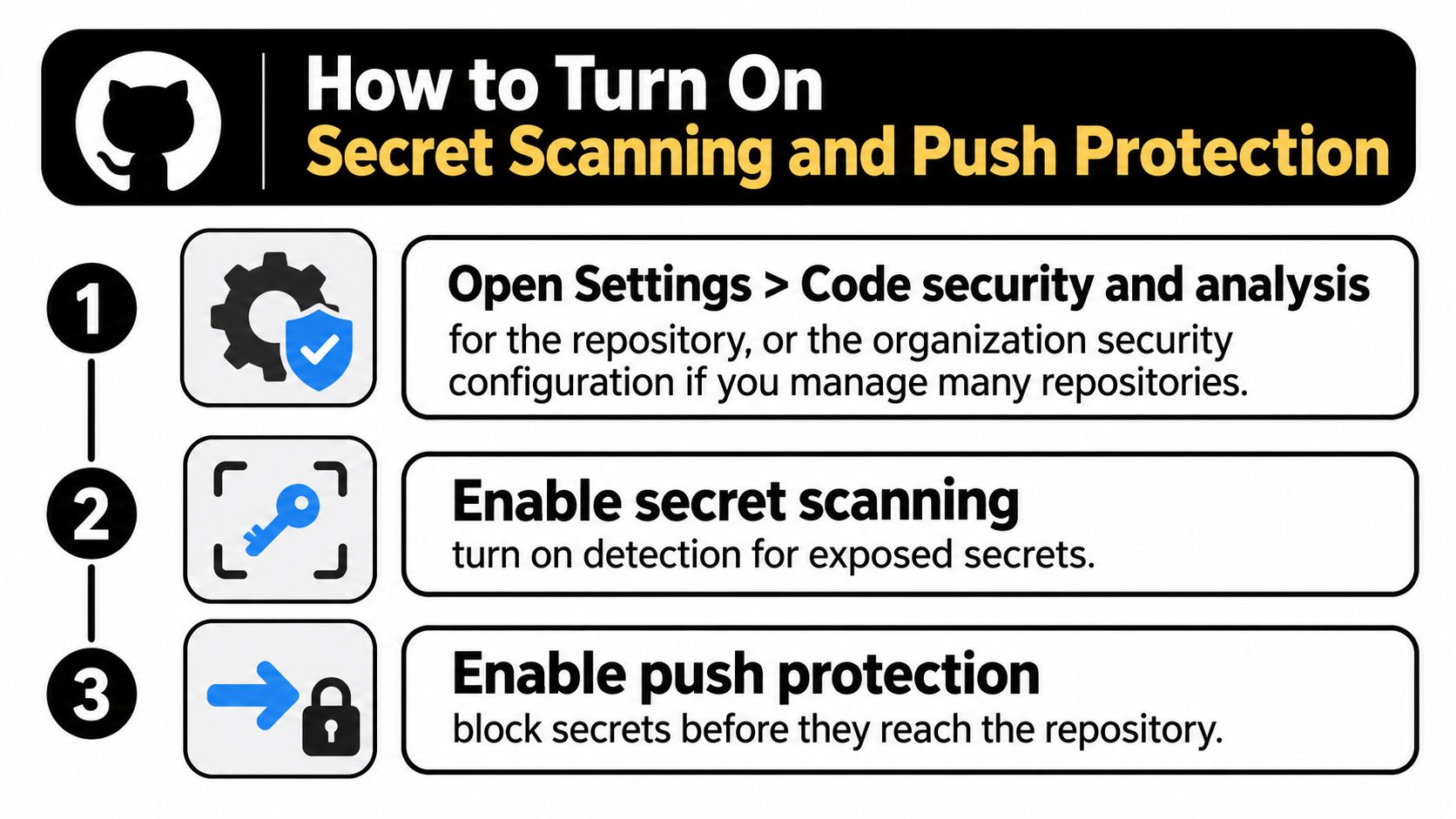
- Open the repository settings. Go to Settings > Code security and analysis. For a rollout across multiple repositories, use the organization's security configuration to set consistent defaults.
- Enable secret scanning. Check the alerts view afterward. Existing findings need investigation and credential rotation where appropriate; enabling detection does not clean up committed secrets.
- Enable push protection. GitHub can block supported secrets before a push is accepted. This helps prevent new exposure, but does not remove secrets already in repository history.
- Add custom patterns for internal token formats. Standard patterns may not recognize company-issued credentials used in agent tool configuration. If a value matches neither a supported nor a custom pattern, it can pass undetected.
- Test with a synthetic value. Choose a test value that matches a pattern, push it to a throwaway branch, and confirm GitHub blocks it. A value that matches no pattern proves nothing. For MCP configuration, follow this guidance on keeping credentials out of committed MCP configurations.
- Review bypasses. Check the push-protection bypass log regularly, and give each bypass an owner and a reason. If a real credential gets through, rotate it. Dismissing an alert does not invalidate the credential.
Know the Limits Before You Trust It
Push protection covers supported, identifiable secret patterns. Very large pushes can time out or be skipped, so a successful scan is not proof that every file or credential type was inspected.
A blocked synthetic push proves that one pattern works for that repository. It does not prove that every credential type in your Cursor, Claude Desktop, VS Code, or Continue configuration is covered.
Agent repositories can contain credentials in environment templates, shell commands, and MCP configuration fields that do not match standard provider patterns. Custom patterns can cover some internal formats, but they do not replace bypass review or a procedure for rotating credentials that evade detection.
How to Lock Down GitHub Actions Permissions
The default that most often grants too much is the GITHUB_TOKEN. If it can write when your jobs only read code and run checks, a compromised step inherits write access it never needed.
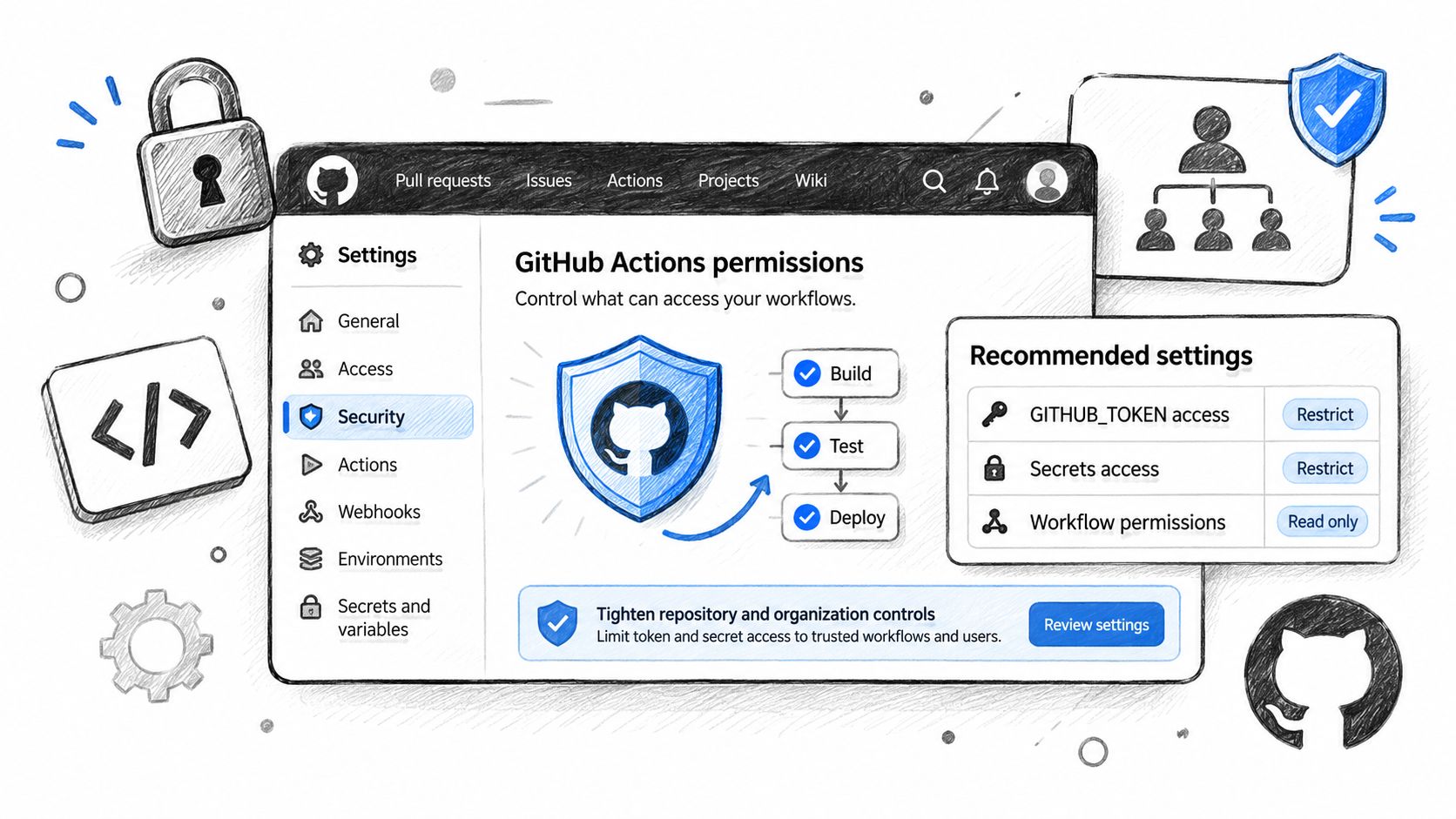
Apply the values below at the repository or organization level first. Then declare narrower permissions in each workflow file so every job lists only the scopes it uses. For a deeper walkthrough of workflow hardening, use the existing GitHub Actions security guide instead of duplicating those steps in team runbooks.
| Setting | Recommended value | Why it matters |
|---|---|---|
| Default GITHUB_TOKEN permission | Read repository contents only | Limits what any step can write if it is compromised |
| Job-level permissions block | Explicit scopes for each job | Overrides broad defaults in the workflow file |
| Workflows creating or approving pull requests | Off unless a named bot needs it | Stops a workflow from approving its own changes |
| Third-party action references | Full commit SHA | Keeps the executed code from changing under a mutable tag |
| Workflows from first-time contributors | Approval required before running | Keeps fork code from reaching repository secrets without review |
| Agent-tooling package versions | Exact versions in a lockfile | Fixes what is installed on each build; does not establish package safety |
Verify What the Token Actually Got
Run a test workflow that logs the granted permissions and compare the result with the workflow file. A default can be broader than the file suggests, especially in older repositories where the setting predates your current policy. If a job only needs contents: read and checks: write, anything else in the log is a finding.
The short video below is useful background before you audit your own workflow files.
What Pinning Does and Doesn't Do
Pin a third-party action to a full commit SHA. That fixes which action code runs and prevents a silent change under a mutable tag. It doesn't show the action is safe. You still need to review what the action does, what token it receives, and whether it needs network or write access.
The same separation applies to agent-tooling packages. Exact versions in a lockfile fix what gets installed on each build and make changes visible in review. A pinned version isn't a safety finding, and pinning doesn't replace reviewing the package or the configuration that runs it. When a reviewer asks whether a dependency is safe, answer those as two different questions.
How to Add a Foo Guard Check to Agent Config Pull Requests
A passing check only proves what its inputs and policy evaluated. Start with a synthetic configuration, then verify that a pull request produces the findings you expect.
Use a fictional MCP configuration with a shell-capable tool and a placeholder in an environment field. Do not install or run it.
- mcpServers entry:
synthetic-shell-tool - command:
synthetic-shell - env field:
API_TOKENset toSYNTHETIC-PLACEHOLDER-NOT-A-CREDENTIAL
The command field lets you test detection of a shell-capable tool. The environment field gives you a safe placeholder for testing how a configuration is reviewed for credentials. GitHub's native secret controls may not match the placeholder format, so treat the Foo Guard result as a separate check of the agent configuration.
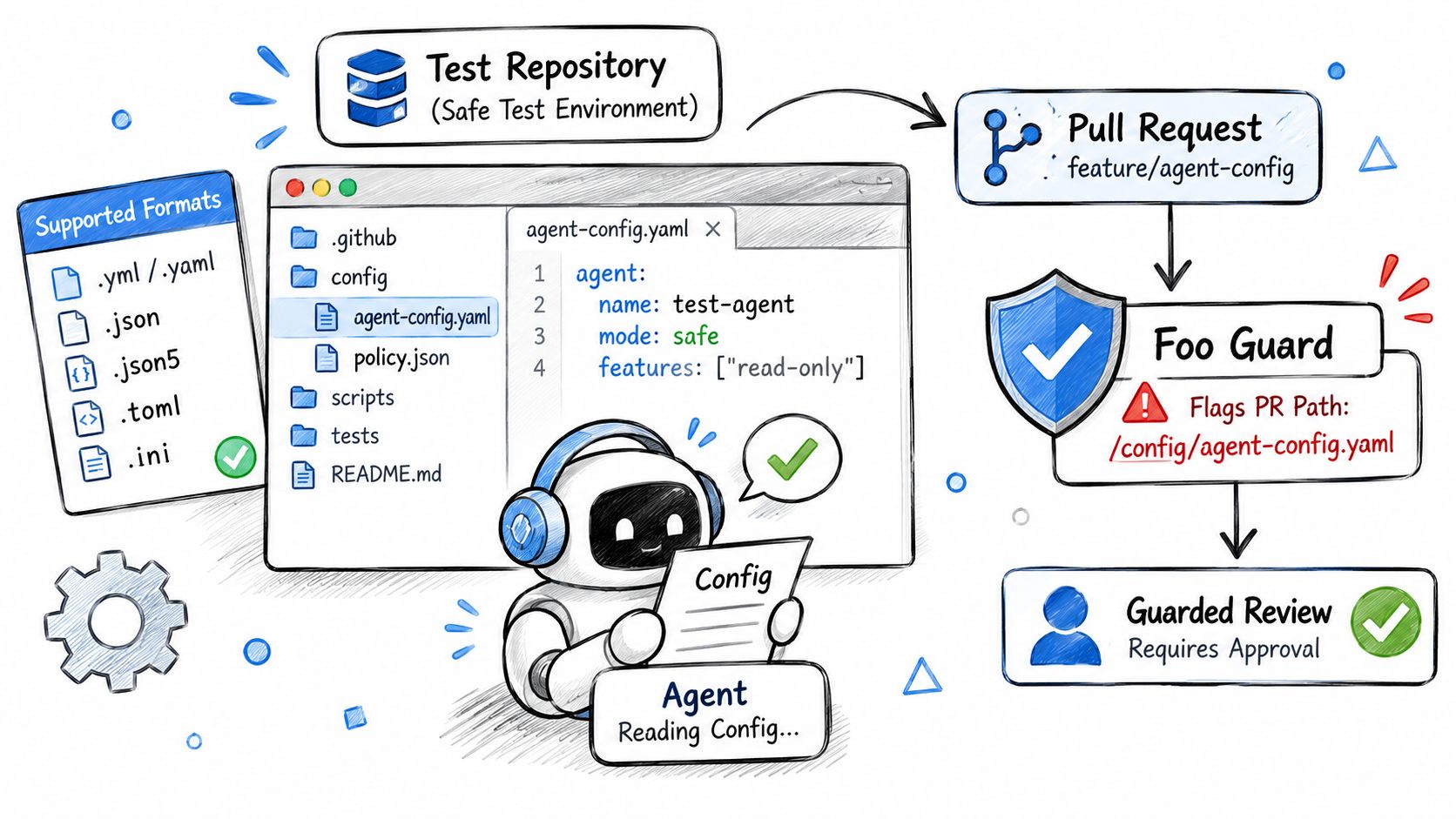
Scan the JSON or YAML file your agent reads without rewriting it into another schema. Foo Guard accepts pasted or uploaded JSON and YAML configurations and reports risky permissions, credentials, and approval settings without running the agent.
Install and Test the Check
- Install the GitHub App with least privilege. It requires Metadata (Read), Contents (Read), Checks (Read/Write), and Pull Requests (Read). Inline review comments also require Pull Requests (Write) and enabled inline feedback.
- Add
.fooguard.ymlat the repository root. Declare scan paths and afailOnthreshold. For examples of policy structure, use the policy as code examples and adapt the paths to the JSON or YAML files in your repository. - Open a pull request that changes the synthetic configuration. Keep the change small so each finding maps to a field you intentionally added.
- Read the check result by rule. Each finding includes its rule ID, severity, and configuration location. Foo Guard places the risky setting beside the finding, so you can decide what to change without searching the file.
- Change the flagged location, push, and check again. Remove the shell command or replace the placeholder with a reference to a credential loaded outside the committed file. Confirm the relevant finding clears. If it does not, inspect the scan paths and effective threshold.
For Team GitHub scanning, Foo Guard reads .fooguard.yml and the supported agent configuration paths it references at the exact commit SHA. That ties the result to the policy and files evaluated for that check. A later edit does not change the earlier result.
What This Example Cannot Prove
A finding on synthetic-shell-tool shows that the static configuration grants a shell-capable tool. It does not establish what the tool executes or what an agent might ask it to do at runtime. Static configuration findings and observed runtime behavior are different evidence.
Review habit: Read the evidence path first, then the severity. Before accepting or dismissing a finding, identify the field that grants the capability.
Run the same synthetic configuration through a scan before connecting a real repository. Compare the expected findings with the pull request check, then use a deliberately failing test pull request to confirm that the check reports the policy result you intended.
How to Require Passing Checks Before Merge
A check that reviewers can ignore is reporting, not enforcement. Turn the checks you rely on into merge gates.
- Create a ruleset for the default branch. Open Settings > Rules > Rulesets and target the default branch explicitly. Don't assume a ruleset aimed at all branches matches your release process.
- Require a pull request with at least one approval. This stops direct pushes from bypassing both human review and automated checks.
- Add required status checks by exact name. Include your CI jobs and the Foo Guard check, typed exactly as they're reported. A close match isn't a gate.
- Require branches to be up to date before merging. The check should run against the current base, not against a base that changed after the last run.
- Test in Evaluate mode before switching to Active. Confirm the ruleset evaluates the pull requests you expect before it starts blocking merges.
- Open a deliberately failing synthetic pull request. Use the shell-capable example, confirm the check fails, and confirm the merge button stays blocked. If it merges, the gate isn't real.
Why a Green Check Can Still Fail to Gate
According to GitHub's troubleshooting guide for required status checks, required checks are evaluated against the pull request's latest commit SHA. A check that passed before a new commit doesn't satisfy the rule until it runs successfully for the latest SHA. GitHub recognizes success, skipped, and neutral as successful check conclusions for this purpose.
That SHA rule is the control. It stops a pull request from merging after unvalidated changes are pushed on top of a pass. Your scanner therefore needs to trigger on every relevant update, not only when the pull request opens.
A required check must also have completed successfully in the selected repository within the previous seven days. Let a workflow sit unused or broken and the required name may have no current result to satisfy it.
Check names deserve the same care as permissions. A check and a commit status with the same name can both be required, which creates two obligations. Rename a workflow job and the ruleset can wait forever for a name nothing reports. If you're untangling duplicate or missing names, AppJet's guide to GitHub checks is a practical reference for how checks and statuses differ.
End with two signals you can screenshot for review. A red pull request can't merge, and the required name matches exactly what the workflow reports on the latest commit.
Organization Minimums Repositories Cannot Weaken
One repository owner lowering a threshold can undo an organization-wide rollout in a single commit. Set the floor above the repository so that can't happen.
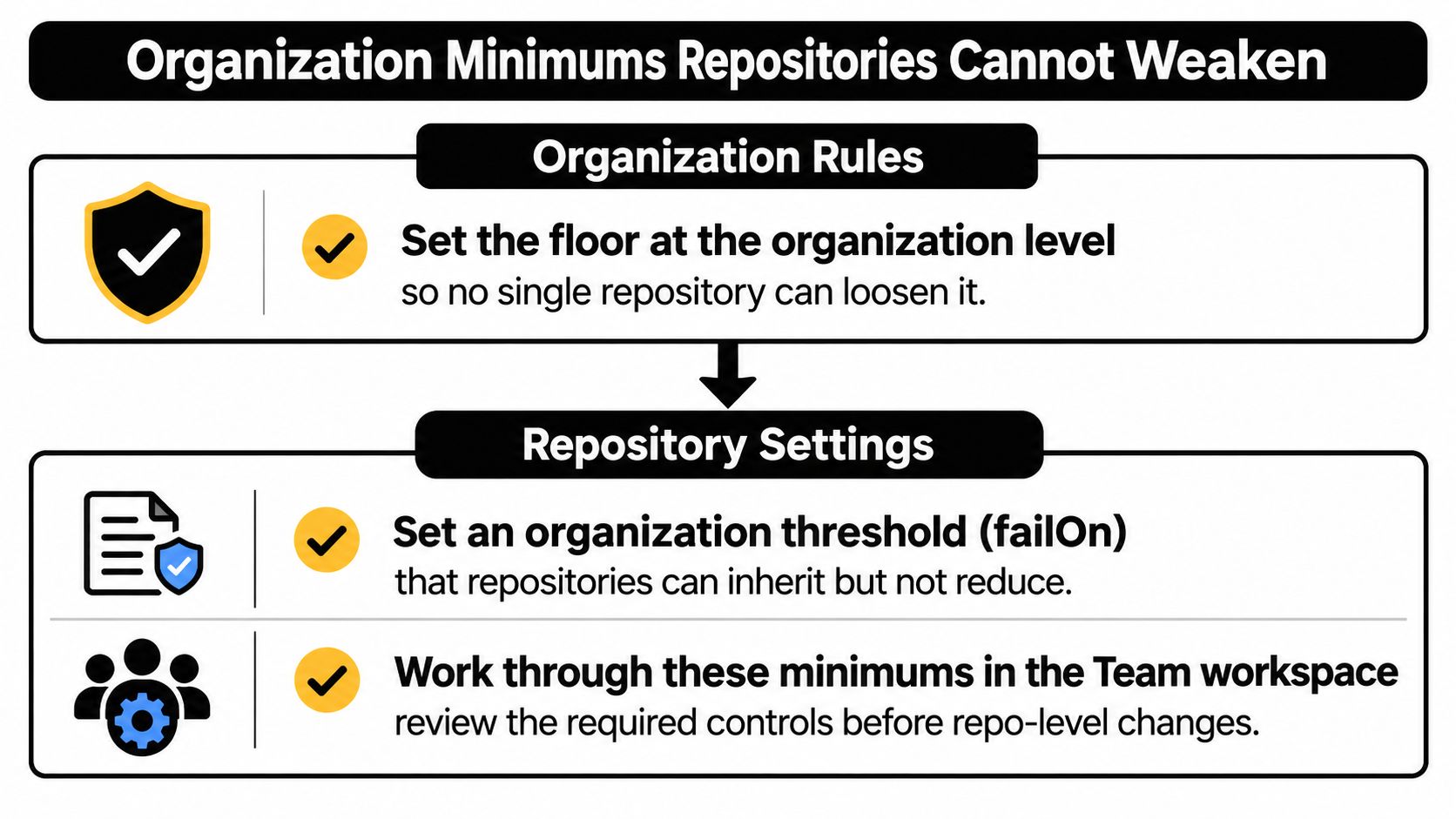
Work through these minimums in the Team workspace.
- Set an organization failOn threshold. Repositories can tighten it but can't relax it. Pick the severity you'd block a release for, not the severity that keeps dashboards quiet.
- Require the check on every repository holding agent configurations. Include MCP tool definitions, not just application code. A repository with only configuration files can still grant shell, filesystem, network, or database access.
- Enable pull request and default-branch scanning. Pull request scanning catches changes before merge. Default-branch scanning rechecks what landed.
- Turn on baseline regression detection. Reviewers need new findings separated from existing ones, or every pull request looks equally bad and teams stop reading.
- Apply the secret and code scanning baseline to every eligible repository. Use the organization security configuration rather than relying on each owner to find the same toggles.
- Review coverage monthly and label each gap. Use three labels only: feature unavailable, feature disabled, or feature enabled but insufficient. Each needs a different fix, and lumping them together hides licensing and eligibility problems.
How the Strictest Threshold Wins
Effective scan policy combines Team organization policy, the repository .fooguard.yml, and CLI flags, with the strictest threshold taking precedence. Organization policy set in the Team workspace remains a mandatory floor that repository settings cannot weaken. That precedence rule is what makes the minimum a minimum instead of a suggestion.
For teams running CI outside GitHub, the CLI can act as the same security gate in any CI platform. Confirm the current CLI behavior and Team workspace path against the documentation before you publish internal instructions, since a wrong path in a runbook erodes trust quickly.
Organization policy sets the floor. It doesn't make the repositories it covers safe. A repository can satisfy every minimum and still ship an agent configuration with broad tool access that nobody reviewed closely.
Confirm Your Settings and Read a Passing Check Correctly
A green check is the most common false comfort in this setup. Run the verification pass below this week using tests you already defined, and keep the evidence where reviewers can find it. If you want a structured way to record that evidence, the evidence checklist for reliable tests is a useful model for separating what you ran from what you concluded.
- Confirm the baseline on every eligible repository. Secret scanning, push protection, code scanning, Dependabot alerts, rulesets, and read-only token defaults should each show as on, not assumed.
- Re-run your two negative tests. Push the synthetic secret to a throwaway branch and open the failing synthetic pull request. Both should be blocked again.
- Match required check names to reported names. Compare the ruleset entry with the latest run character for character, including job suffixes.
- Review the bypass log and the threshold source. Our check summary names the effective threshold and where it came from. If the source is a repository file where you expected organization policy, fix the precedence before rollout.
- Read each finding with its evidence path before changing anything. Change the flagged field, not the severity, and let the next commit prove the finding clears.
What a Pass Means
A green check means the configuration passed the configured rules and thresholds at that commit. It doesn't show the agent behaves safely at runtime, that tool responses are trustworthy, or that a package is safe because its version is pinned. It also doesn't certify any framework.
Static analysis can't show what an agent does with a tool it was allowed to call. That's a runtime question, and answering it needs runtime observation, not a cleaner scan report. A clean scan is a reason to merge a reviewed configuration. It isn't a guarantee of safety.
Start by running the MCP native scan example against the synthetic structure, then apply the same check to one nonproduction repository. Prove the failing case blocks there before you roll the gate out organization-wide.
Bring one native Cursor, Claude Desktop, VS Code, or Continue configuration from a nonproduction repository and run it against the threshold you'd enforce at merge. Foo Guard scans MCP and agent configuration paths at the exact commit SHA, shows the rule, severity, and evidence location for each finding, and lets you require that result before merge. Start with the synthetic shell example, confirm it fails, then tighten the actual configuration until the finding clears for the right reason.